How to connect laptop to tv: Your laptop is a mainstay in all your tasks, whether it be work, studying, gaming, entertainment, or video calls. However, the small screen of your laptop just doesn’t cut it when your task involves viewing something bigger. When you want to view a video or a presentation with a big crowd, or even to view a game with your family, a TV can be a makeshift external screen for your laptop.
Knowing how to connect a laptop to a TV is easier than you think. The HDMI setup is arguably the easiest wired setup. To use an HDMI to HDMI computer to TV cable, the TV and laptop just need one cable to share both video and audio.
Why Connect Laptop to TV
One of the biggest reasons to connect your laptop to a TV is that the TV has a considerably larger screen compared to the laptop. Content becomes more enjoyable when pictures, movies, videos, presentations, and even websites can be viewed more easily when there’s less of a crowd around a laptop to view it.
Understanding how to connect a laptop to a TV can benefit students, office workers, and entertainment lovers. Instead of having to cram around a small laptop to view content, it can be so much easier and more pleasant to view content on a TV.
HDMI Is One of the Easiest Options
HDMI (High Definition Multimedia Interface) is a digital connection method for transmitting audio and video simultaneously. One of the primary selling points of HDMI is the simplicity of a connection from your laptop to your TV, assuming both devices have appropriate inputs.
Identify All of Your Laptop’s Connectors Before Connecting.
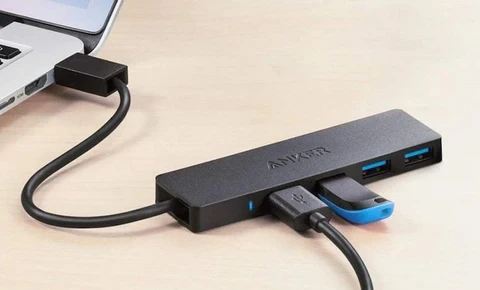
Prior to connecting anything, take note of all the connectors on the laptop. While the majority of laptops include an HDMI connector, there are laptops that do not include one and instead opt for a USB-C connector.
If your laptop includes an HDMI connector, a basic HDMI cable will suffice. On the other hand, in the absence of an HDMI connector, you may require a USB-C adapter toa USB-C cable. Ensure that you research your laptop to avoid problems when connecting additional accessories.
Select the Correct TV Input
You can open the source or input menu on your TV with the TV remote. Select the television input that corresponds to the laptop cable connection.
To display your laptop on your TV, your laptop needs to be connected to your television via an input source that your TV can read. This is where HDMI 1 comes into play. Select HDMI 1 on your television so the TV can actually read and display the laptop. This example is essential to the process of how to connect a laptop to a TV.
Adjust the Screen Resolution
When you make the connection, the image may not be clear. Repeated words or poorly formatted text may appear.
Check laptop display settings. Determine the available resolutions. Look for resolutions that work with the television. Adjust to your preferred resolution. Determine the resolution that works best based on the TV and laptop.
Watching Movies on a Bigger Screen
Most people learn to connect their laptop to a TV for entertainment. A laptop can store or access videos, streaming services, photos, and other entertainment. A TV can display these things much better.
After the connection is made, you are able to sit back and enjoy the content much better, as you are further away from the screen than with your laptop. This is great for family/friend entertainment.
No Signal Problem Persists
If you‘ve ruled out all the above causes, go to the display settings and try to activate the external monitor. You can also go to a different HDMI port on the TV and try a different cable on a different TV.
When There Is Picture but No Sound
Hdmi to hdmi computer to tv: As long as the laptop is displaying the video, the problem is likely with the audio output on the laptop. Adjust the sound settings and look for the TV or the HDMI audio device.
Check the TV volume and make sure it isn’t muted. Also, look for an adapter that supports both the video and audio signal because some only provide video.
Keeping the Connection Stable
Knowing the connection between your laptop and your TV is always good, but leaving the connection set up can be bad. Keeping the cable in an inconvenient place will make people trip over it, and it may get pulled and disconnect your laptop from your workstation.
Disconnects can also cause lots of wear on your connection. Holding the connector rather than disconnecting by the cable is a safe way to do it.
Wireless Alternatives to HDMI
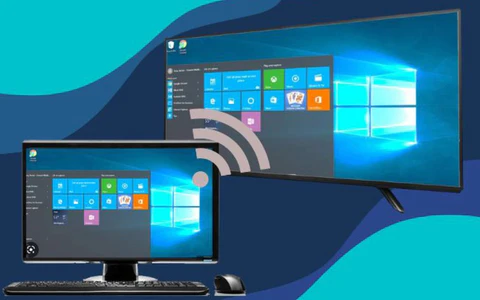
There are other ways to connect your laptop to your TV besides HDMI. Other connectivity options may be available, depending on your devices.
Using wireless connections makes many tasks more convenient and even simplifies a lot of setups, but in the case of wireless connections, users may encounter the need for compatible software, hardware, or may even need to configure something. For users who like to keep things more straightforward, HDMI connections are still viable.
When You Need To Use A Wired Connection
Reliability is key when you want to use a wired connection. Things get even better with a wired connection, as there is no dependence on the strength of a wireless connection once all the right ports and settings are known.
For presentations or any other time you want a stable connection, an HDMI to HDMI computer to TV setup is simple as long as both options have HDMI ports.
Conclusion
There are many things to explore when one learns how to connect their laptop to their TV. A TV can become a big screen for movies, presentations, games, classes, and even daily computer work.
An HDMI to HDMI computer to TV setup is one of the easiest wired options available if both devices have HDMI ports. Just connect the cable, select the TV as your display, choose your preferred display settings, and feel free to adjust the audio and resolution whenever you like.